
Find Your Way Around - Built-In Help
Find Your Way Around - Built-In Help

Reward Music gives you a powerful set of tools — content publishing, e-commerce, email campaigns, membership management, media hosting, and more. That breadth is one of its greatest strengths, but it also means there's a lot to learn. Until now, finding how a specific feature worked meant searching documentation or reaching out to support, taking you away from the task you were actually trying to complete.
We've built a comprehensive help system directly into the admin. Three new tools — Help Tips, Page Tours, and How-to Guides — are available from the Help menu on every page, each designed for a different depth of learning. All of them work without leaving the page you're on.
Help Tips: Instant Answers on Every Field
Toggle Help Tips
Click "Toggle Help Tips" in the Help menu. Tooltip icons appear next to every form field. Hover over any icon to see what that field does.
Help Tips are the fastest way to get an answer. When activated, small tooltip icons appear next to every form field on the current page. Hover over any icon for a concise explanation of what that field does, what values it expects, and how it affects your site.
When Help Tips Are Most Useful
Setting up a new feature: The first time you create an email template or configure a product with variants, every field might feel unfamiliar. Help Tips give you a real-time reference.
Revisiting a page after a while: You set up your event page six months ago. Help Tips refresh your memory on what each field does.
Understanding optional fields: Clarify which fields are required, which are optional, and what happens if you leave them empty.
Training someone else: A bandmate or manager helping with the site can learn as they work without needing you to walk them through every form.
Help Tips are a toggle — turn them on when you need guidance, off when you want a cleaner interface.
Page Tours: Guided Walkthroughs
Start Page Tour
Click "Page Tour" in the Help menu. A guided walkthrough highlights each section of the page in sequence, explaining what it does and how to use it.
If Help Tips answer specific questions, Page Tours give you the full picture. The tour walks you through the current page step by step — highlighting each section with a focused explanation of what it does and how it fits into the broader workflow. By the end, you have a complete mental model of the page.
Imagine exploring the email workflow builder for the first time. Instead of scanning a canvas full of unfamiliar controls, start a tour: it walks you through the trigger selector, the step types, the email content area, and the publish controls in logical order. In a couple of minutes you go from "I have no idea how this works" to "I'm ready to build one."
Tours are contextual: Each admin page has its own tour tailored to that page's features. The product editor tour is different from the email editor tour, which is different from the membership settings tour.
How-to Guides: In-Depth Articles Right in the Admin
Open How-to Guides
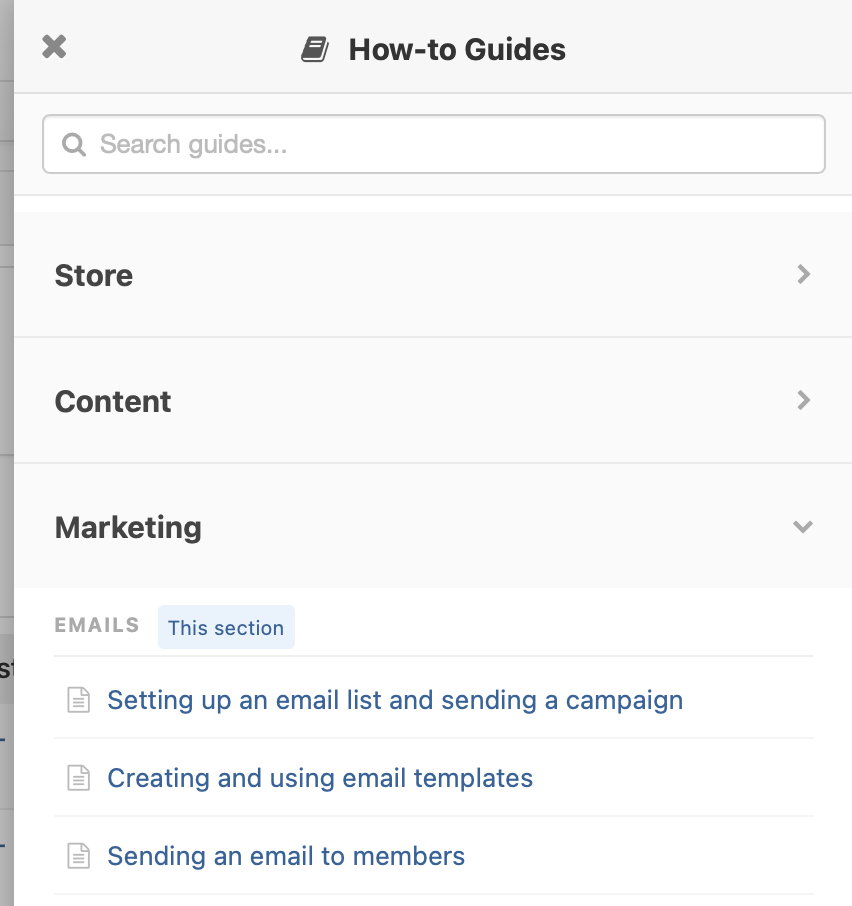
Click "How-to Guides" in the Help menu. A slide-out panel displays step-by-step articles relevant to the page you're currently viewing.
For tasks that need more than a tooltip or a walkthrough, the How-to Guides panel provides in-depth, step-by-step articles. The guides are contextual: on the email editor you'll see articles about templates, shortcodes, and layouts; on the product page you'll see guides about variants, pricing, and inventory.
The articles are written in plain language with practical steps you can follow in real time. Because they open in a slide-out panel, you read the instructions and take action on the page simultaneously — no switching between tabs or losing your place.
Guides You'll Find
Email page: Creating templates, adding shortcodes, building multi-column layouts, setting up workflows.
Product page: Adding variants, configuring pricing, managing inventory, creating coupons.
Content editor: Using the column builder, drag-and-drop images, editing images in-place.
Video page: Adding chapters, uploading captions, creating and managing playlists.
Three Tools, One System
Help Tips, Page Tours, and How-to Guides work together as a layered system. In practice, you might start a Page Tour on an unfamiliar page to get the overview, open a How-to Guide for step-by-step instructions on a specific task, and toggle Help Tips to clarify a few fields along the way. Each tool gives you exactly the level of detail you need at that moment.
- Help Tips for quick, field-level answers when you need clarification on a specific input
- Page Tours for a complete overview when you want to understand everything a page offers
- How-to Guides for in-depth, step-by-step instructions on specific tasks
- Fully contextual — every page shows help relevant to what you're working on
- Non-intrusive — all tools are opt-in and toggle on or off
- Great for onboarding new team members or collaborators
The more you use your site, the less you'll need these tools — and that's the point. They accelerate your learning curve so you become self-sufficient faster. But they're always there in the Help menu when you need a refresher or want to explore something new.