
Reward Music replaces your Dropbox and WeTransfer
Reward Music replaces your Dropbox and WeTransfer

You’ve got content you don’t want out in the open: a download reserved for paying members, files you’re only ready to show a handful of people, content you want to share before it goes public. Until now, sharing that with someone outside your usual audience meant loosening your permissions or asking them to create an account first.
Access Links change that. They’re the newest part of your Content Permissions tools, and they make private sharing as simple as sending a link.
What are Access Links?
An access link is a unique, shareable URL that gives anyone instant access to a single piece of content — bypassing your permission and purchase requirements — without changing your permission settings. Use one to share a protected download, article, or video with someone who isn’t a member, and everyone else still sees exactly the restrictions you set.
Access links work with just about any content on your site: downloads, articles, videos, events, products, songs, playlists, photo albums, posts, and more.
Creating an access link
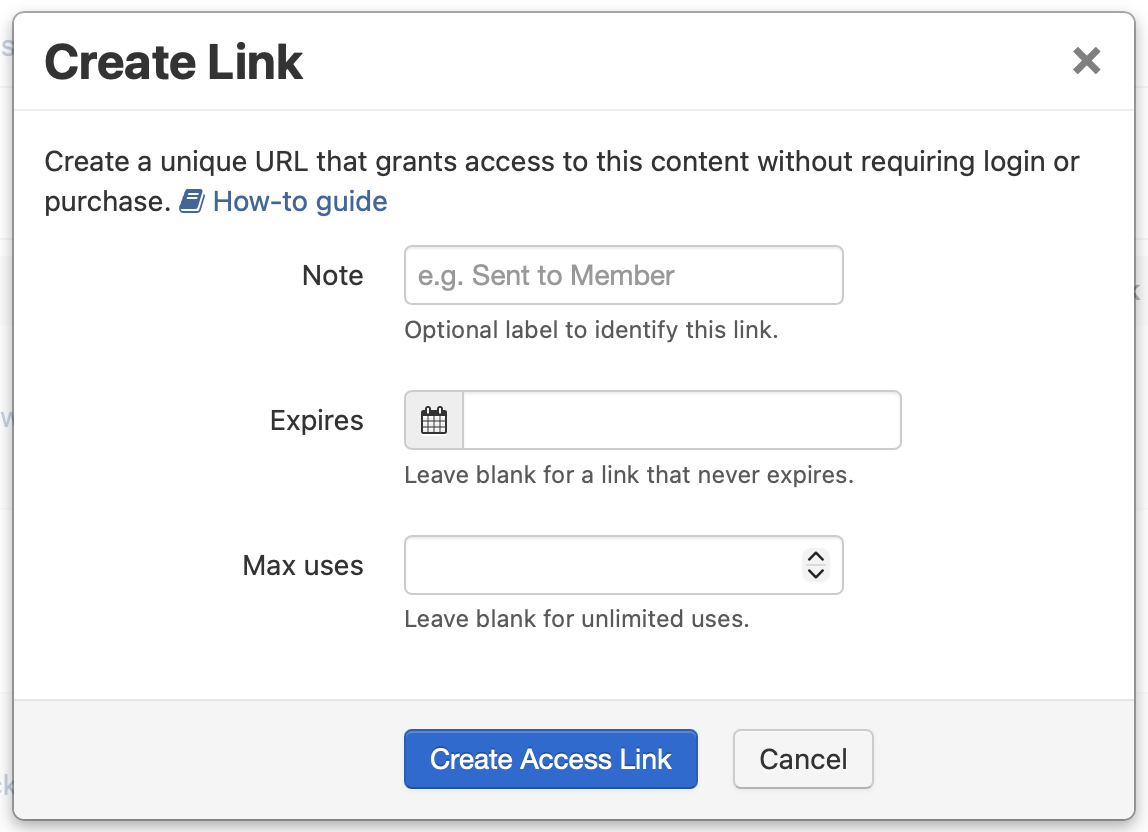
On any content item’s admin page, find the Content Permissions panel in the sidebar and click Create Link. A short form opens with three optional fields:
- Note — a label to identify the link later, like “Sent to John Smith” or “Conference attendees.” It shows up in your manage list.
- Expires — a date and time after which the link stops working. Leave it blank for a link that never expires.
- Max uses — the maximum number of times the link can be redeemed. Leave it blank for unlimited uses.
Click Create Access Link and it’s added to your list right away. Then, in the Manage view, click Open Access URL next to any link to grab its shareable address. Copy it, send it — no login or account required on the other end.
- Open the content item and find the Content Permissions panel
- Click Create Link and set an optional Note, Expires date, or Max uses
- Click Create Access Link
- Hit Manage → Open Access URL to copy the link and share it
What the recipient sees
It just works — there’s nothing for them to sign up for or figure out. For a downloadable file, the link triggers an immediate download. For other content types like articles, videos, and events, the visitor is taken straight to the content page and granted temporary access for their session.
Ways to use them
Send private access to one person
Share a private download or piece of content with a single person — no account required on their end. Add a Note with their name so you remember who got what, and you’re done.
Share one link with a whole list
Getting a members-only download out to your mailing list or a fan group? Create one link and paste it into the email — everyone on the list can use it, no individual accounts needed.
Give time-boxed early access
Want to share something before it’s public? Set an Expires date so the link goes dead at the moment you choose — automatically, with nothing to remember to turn off.
Hand out one-time or limited access
Set Max uses to 1 for a link that works exactly once, or a small number for limited access. Once it hits the cap, it stops working on its own.
Track how your content travels
Every link has a Uses count that ticks up each time it’s redeemed. Pair it with descriptive Notes and you can see at a glance whether a link has been opened, and how many people have used it.
Managing and revoking links
Your Manage list keeps every active link in one place, with its Note, expiry, and Uses count. Change your mind about a link? Click Revoke and it’s disabled instantly — any future visit to that URL is rejected.
Links that pass their expiry date or reach their maximum use count drop off the manage list automatically — no cleanup required. Anyone who follows an expired or used-up link simply sees an “invalid or expired” notice.
Share more, without giving up control
Access Links give you a quick, private way to get the right content to the right people — one person or a whole list — while your permissions stay exactly as you set them for everyone else. Open any download, video, or article, find the Content Permissions panel, and create your first link in seconds.